Saves, backups and save states
Where your saves live, how they're protected, how to share them with RetroArch, and how save states, resume and rewind work.
Your progress lives in two kinds of files. The save file is what the game writes when you save in the game's own menu: a standard .sav or .srm, the same as mGBA and RetroArch use, so you can carry it between emulators. Save states are snapshots of the whole moment, taken by PokeDaisy at any time, even mid-battle.
This page covers both, and how PokeDaisy keeps your save file safe.
Your save file is protected
Losing a 40-hour save is the worst thing an emulator can do, so PokeDaisy is careful with it:
A backup every time you start a game. Before the game opens its save, PokeDaisy copies it into a
pokedaisy-backupsfolder next to the save. It keeps the newest 10 different copies for each game, and only makes a new one when the save has changed. You can change all of this in Settings >FOLDERS>SAVE BACKUPS(see Change how backups are kept).Resuming never overwrites a newer save. When a game picks up where you left off, PokeDaisy first checks the save file hasn't changed since. If it has (you played it in RetroArch, copied in another save, or moved your saves folder), the old snapshot is set aside and the game starts from the save file instead.
A save in progress always finishes. If you leave the game while it says it's saving (HOME, the recent apps screen,
CLOSE GAME), PokeDaisy lets the save finish before it stops the game, so swiping PokeDaisy away right after can't leave a half written save behind.Loading another save keeps the old one.
LOAD SAVErenames your current save to a dated copy before putting the new one in place.
Where your saves live
A game finds its save by the ROM's file name: Pokemon Emerald.gba uses Pokemon Emerald.sav (or .srm). For a zipped game, it's the name of the ROM inside the archive, the same as RetroArch.
PokeDaisy looks for a game's save in this order, and uses the first place that has one:
The game's own save folder, if you gave it one (
SAVE FOLDERin its library menu).The saves folder: PokeDaisy's own, or the one you picked in setup or Settings.
The
ALSO LOOK INfolders, in the order you added them.
If none of them has a save yet, the game's first save goes into the saves folder (or its own folder, if it has one). Only the folders themselves are looked in, never the folders inside them.
Change the saves folder
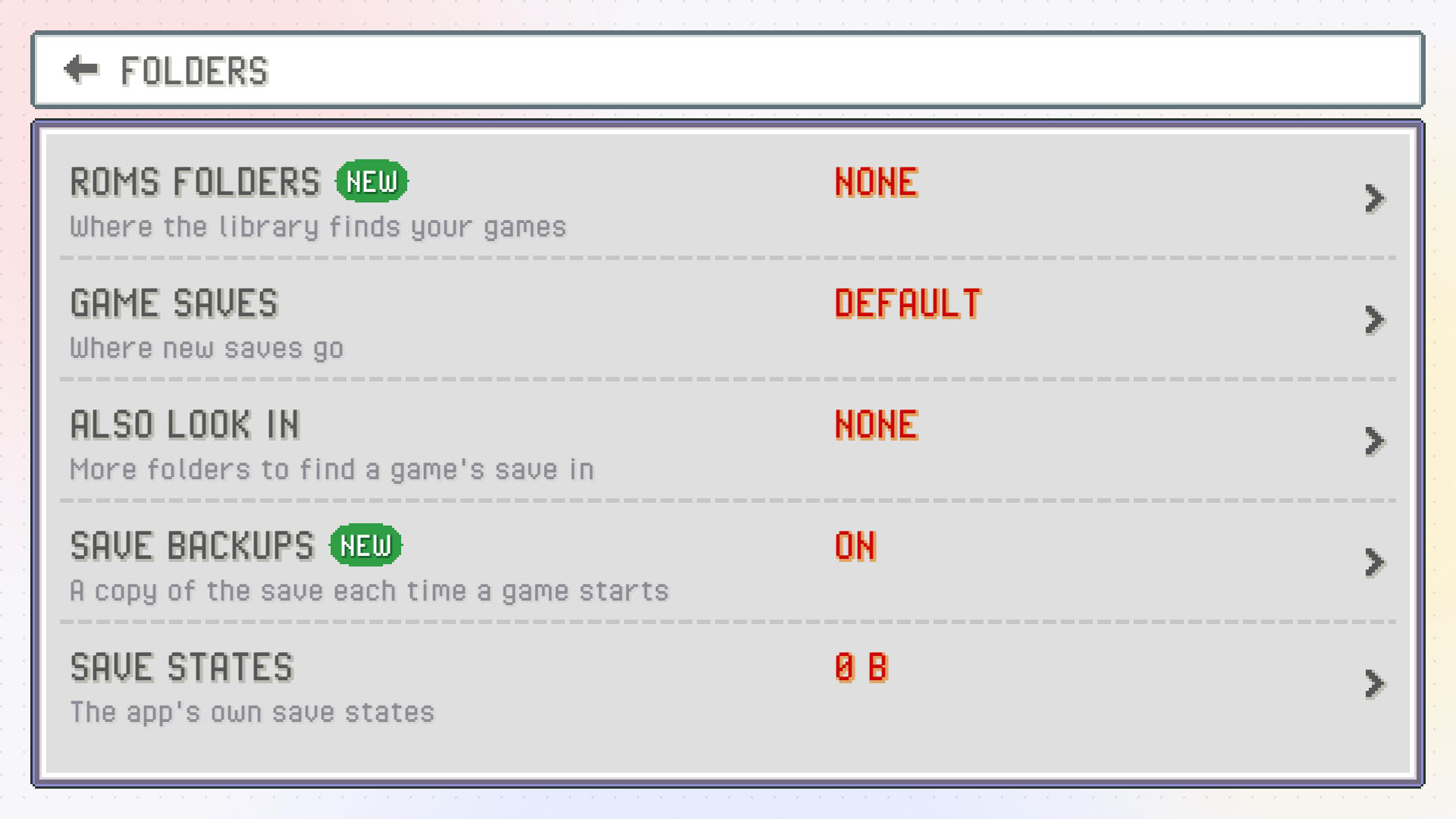
Open Settings > FOLDERS > GAME SAVES. You'll see the current folder and the saves in it:
CHANGE FOLDERpicks another folder.USE DEFAULTgoes back to PokeDaisy's own folder,Android/data/com.pokedaisy.app/files/saves/.COPY PATHcopies the folder's path, handy for a file manager.
Changing the folder doesn't move any saves. Copy them over yourself if you want them in the new place.
Share saves with RetroArch
To keep playing the same saves in RetroArch and PokeDaisy, add RetroArch's save folders in Settings > FOLDERS > ALSO LOOK IN with ADD FOLDER. RetroArch often keeps one folder per core, so add each one you use, for example RetroArch/saves/mGBA and RetroArch/saves/gpSP.
A save found in one of those folders is played and written right there, so RetroArch keeps seeing your latest progress. REMOVE takes a folder off the list.
If RetroArch's SaveRAM Compression is on (Settings > Saving), its .srm files are packed much smaller than the game's save. PokeDaisy unpacks such a save the first time it opens it, after keeping a copy of the packed file with your backups, and RetroArch reads the unpacked one just as well. LOAD SAVE takes packed saves too. A few newer RetroArch builds pack saves in a way PokeDaisy can't read yet: then the game doesn't start and the save is left as it is, and turning SaveRAM Compression off in RetroArch (then saving there once) fixes it.
If you sync your saves between devices (with Syncthing, say), it's fine to point PokeDaisy at the synced folder. Since only the folder itself is looked in, old copies kept in a folder inside it (like Syncthing's .stversions) are left alone.
Give one game its own folder
Sometimes only one game should use another folder, such as a hack you play in another emulator. Long-press it in the library, tap SAVE FOLDER and pick the folder.
If that folder has no save for the game yet, your current save is copied there (copied, not moved: the old file stays where it was). From then on, the game reads and writes its save in that folder. DEFAULT SAVE FOLDER in the same menu sends it back to the usual folders.
Backups and RESTORE BACKUP
Backups go into a pokedaisy-backups folder beside the save, named after the game with the date and time, like Pokemon Emerald.backup-20261007-233512.sav. Since they sit next to your saves (not hidden in the app), a file manager reaches them, and they stay even if you uninstall PokeDaisy.
To bring one back, long-press the game in the library and tap RESTORE BACKUP. Pick a backup by its date and time, then confirm with LOAD. Your current save is kept as a dated copy first, so restoring is never a one-way trip.
Change how backups are kept
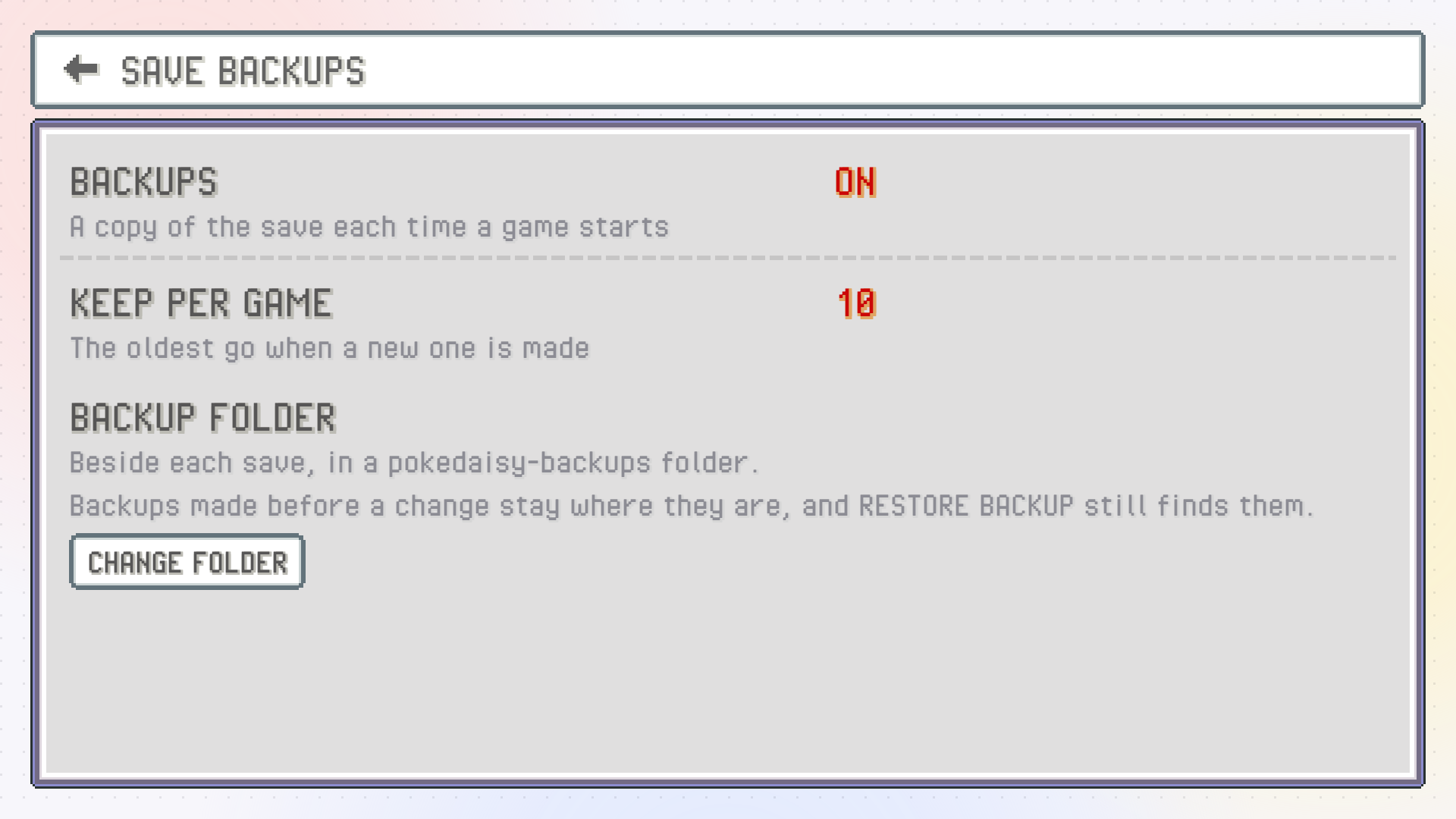
Open Settings > FOLDERS > SAVE BACKUPS:
BACKUPSturns the backup at each start on or off. It's on unless you turn it off.KEEP PER GAMEpicks how many backups each game keeps: 1, 3, 5, 10 (the usual), 20 or 50. When a new backup is made, the oldest ones past that number are deleted.CHANGE FOLDERputs every game's backups in one folder of your choice, instead of apokedaisy-backupsfolder beside each save.USE DEFAULTgoes back to beside each save, andCOPY PATHcopies the folder's path.
Backups you already have stay where they are when you change the folder, and RESTORE BACKUP still lists them.
Load a save file
To use a save from somewhere else (an old save from another emulator, a friend's file), long-press the game in the library and tap LOAD SAVE. Pick the file, and PokeDaisy tells you what it's about to do before you confirm with LOAD:
Your current save is renamed to
<game>.backup-<date and time>next to it, so nothing is lost.The new file is written under the name the game reads.
The next time you start the game, it starts from this save rather than picking up where you left off.
If the file doesn't look like a GBA save, the confirmation says so.
Resuming where you left off
With RESUME GAMES on (the default, in Settings > LIBRARY), closing a game saves a snapshot of the exact moment, and starting it again drops you right back there, mid-route or mid-battle. You don't even need to have saved in the game.
Turn it off if you'd rather every launch start at the title screen and load your in-game save, like a real cartridge. Coming back to a game you left open (after pressing HOME, say) still carries on where you were.
Putting your device to sleep mid-game is safe too. The game holds still on the exact frame and carries on from it the moment you wake the device, with nothing to reload. If Android closes the app while the device sleeps, that counts as closing the game: with RESUME GAMES on, you pick up from the moment it went to sleep.
Save states
Save states are instant snapshots you can take and load at any moment: before a tough battle, before trying to catch something rare, before a choice you might regret.
The STATES tab
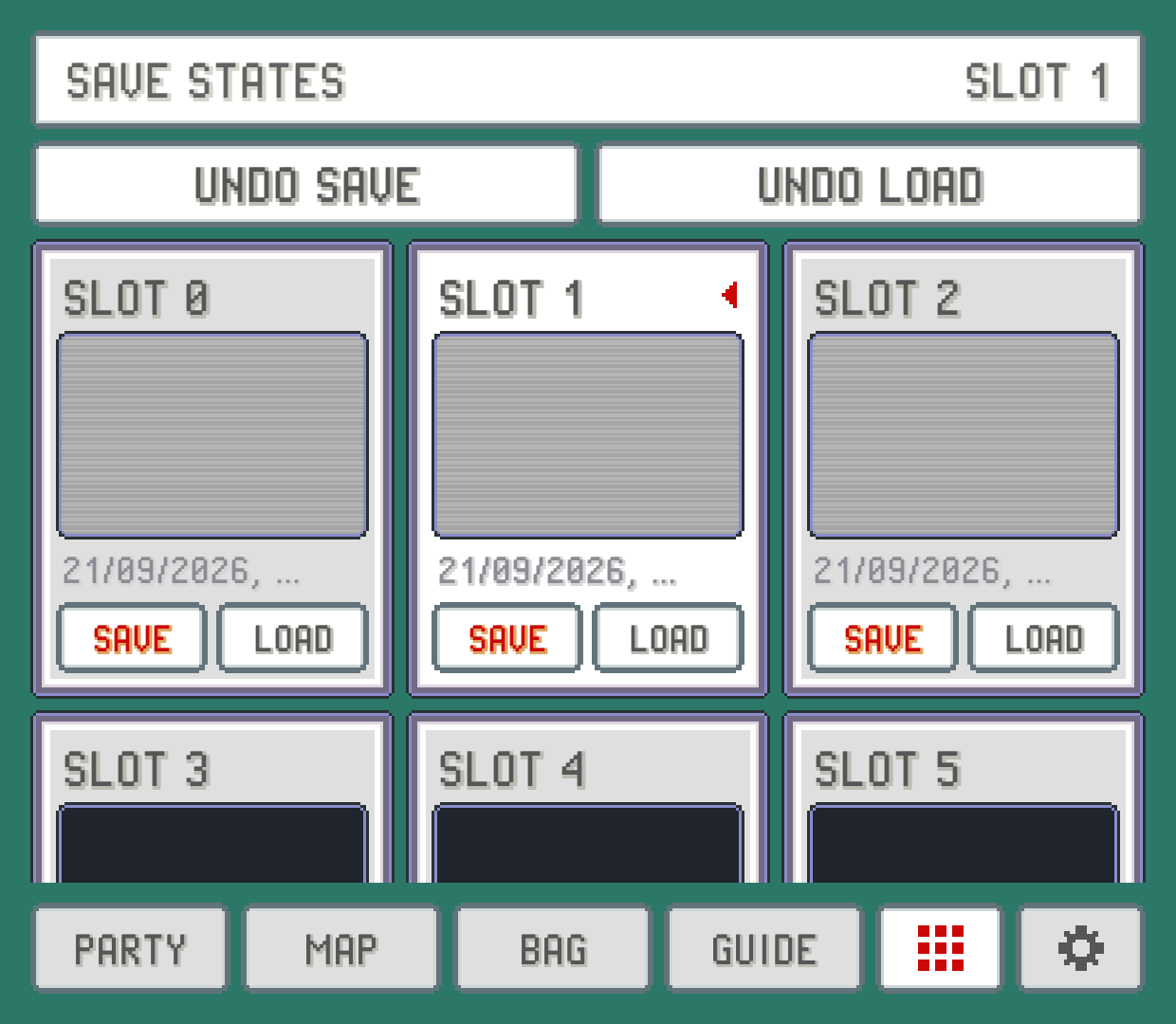
The companion's STATES tab shows 10 slots (SLOT 0 to SLOT 9), each with a screenshot of the moment and when it was saved. It isn't in the tab bar at first: find it under MORE, left of the gear, or put it in the tab bar with TAB BAR.
SAVEunder a slot saves the game into it, replacing what was there.LOADputs the game back to that moment. Tapping a slot's screenshot does the same.Long-press a saved slot to delete it: its screenshot turns into
DELETE, a tap asksCONFIRM DELETE?, and a second tap removes the slot. A tap anywhere else keeps it. Your game's own save is never touched.UNDO SAVEgives the last slot you saved over its previous contents back.UNDO LOADtakes you back to right before the last load.
The title shows the current slot, the one the hotkeys save to and load from.
Hotkeys for states
You can save and load without opening the tab:
| Hotkey | Default |
|---|---|
SAVE STATE | SELECT + R1 (F1 on a keyboard) |
LOAD STATE | SELECT + L1 (F2) |
UNDO SAVE | F3 |
UNDO LOAD | F4 |
SLOT NEXT | ] on a keyboard |
SLOT PREV | L3 ([ on a keyboard) |
Change them under HOTKEYS in Settings. See Controls.
Save states are kept per game in Android/data/com.pokedaisy.app/files/states/, listed in Settings > FOLDERS > SAVE STATES. The library's INFO for a game shows how many slots it uses.
Rewind
Walked into the wrong trainer, or picked the wrong move? With rewind on, you can hold a button and play the last 20 seconds or so backwards, then carry on from any point.
Turn on
REWINDin Settings (top screen or companion, in theFF / SPEEDgroup). It's off by default, since it uses some memory and a little battery while on.Hold the
REWIND HOLDhotkey to go back. Let go to play on from there.
On a keyboard, REWIND HOLD is R. It has no controller button until you pick one under HOTKEYS (see Controls). The sound is muted while you rewind, and when you reach the oldest moment it keeps, the picture stops there.
Rewinding never touches your save file: it only moves the game back in time, and whatever you saved in the game stays saved until the game saves again.
Something wrong or missing here? Edit this page on GitHub or tell us.