Battles
The BATTLE tab's touch buttons, move verdicts, the INFO and SUGGESTIONS pages, the foe's team and switching Pokémon.
In a battle the companion becomes your battle screen: big touch buttons for your turn, and the answers to the questions you'd otherwise look up mid-fight. Will this move hit hard? What is the foe weak to? Who should I send in?
The BATTLE tab
When a battle starts, a BATTLE tab appears at the front of the tab bar and opens by itself. When the battle ends, you're back on the tab you were using. To keep the companion where it is instead, turn off JUMP TO BATTLE in SETTINGS > TWEAKS; the BATTLE tab still shows up for you to tap.
The tab only appears when PokeDaisy can read the battle. In a game where it can't, you stay on your usual tabs rather than looking at an empty page.
Touch buttons on your turn
On your turn the tab shows buttons laid out like the later handheld games: a big FIGHT, with BAG, RUN and POKéMON underneath. Above them, a row of balls shows your party's health (grey for a fainted Pokémon) and, in a trainer battle, the trainer's on the right. Between turns, while attacks play out, the tab shows INFO instead.
These buttons press the game's buttons for you: tap FIGHT and then a move, and the game picks that move. While the game catches up, a small rocking ball shows over the buttons and your own controls pause for a moment so the two don't fight each other.
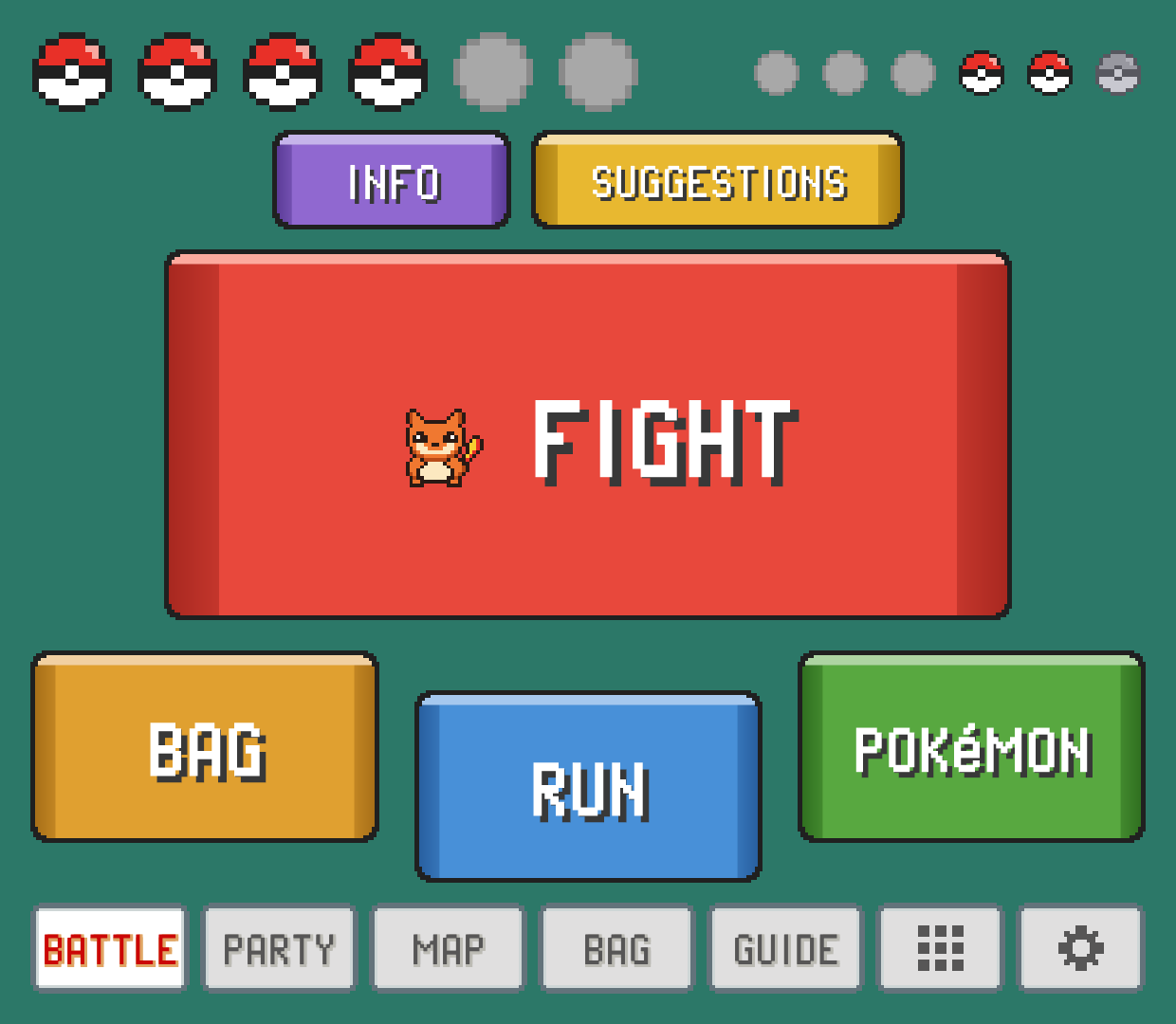
What each button does:
FIGHTopens your four moves right away. Tap one to use it, orCANCELto go back.BAGopens the game's own bag on the top screen. Pick your item there;BACKon the companion backs out of it.POKéMONopens your party on the companion to switch (see Switching during a battle).RUNruns away, and clears the "got away" message for you too. Against a shiny Pokémon it only picksRUNand leaves the rest to you: if the game asks whether you're sure (Unbound does), answer on the game's ownYESorNO. If it asks at another time,RUNanswers yes.
Elite Redux has no bag in its battle menu, so there the tab shows RUN and POKéMON side by side under FIGHT, with no BAG.
Moves and their verdicts
In the original FireRed, LeafGreen and Emerald in English, type tags are the game's own, read from your ROM.
Each move card shows its name, type, an icon for physical, special or status where the game's split is known, power (PWR) and PP left, plus a verdict against the foe in plain words (status moves deal no damage, so they have none):
| Verdict | Meaning |
|---|---|
SUPER 2x | Super effective (4x when both of the foe's types are weak to it). |
NEUTRAL 1x | Normal damage. |
RESISTED ½x | Not very effective. |
IMMUNE 0x | It won't affect the foe at all. |
STATUS | A move that doesn't deal damage. |
NO PP | Out of uses. You can't pick it. |
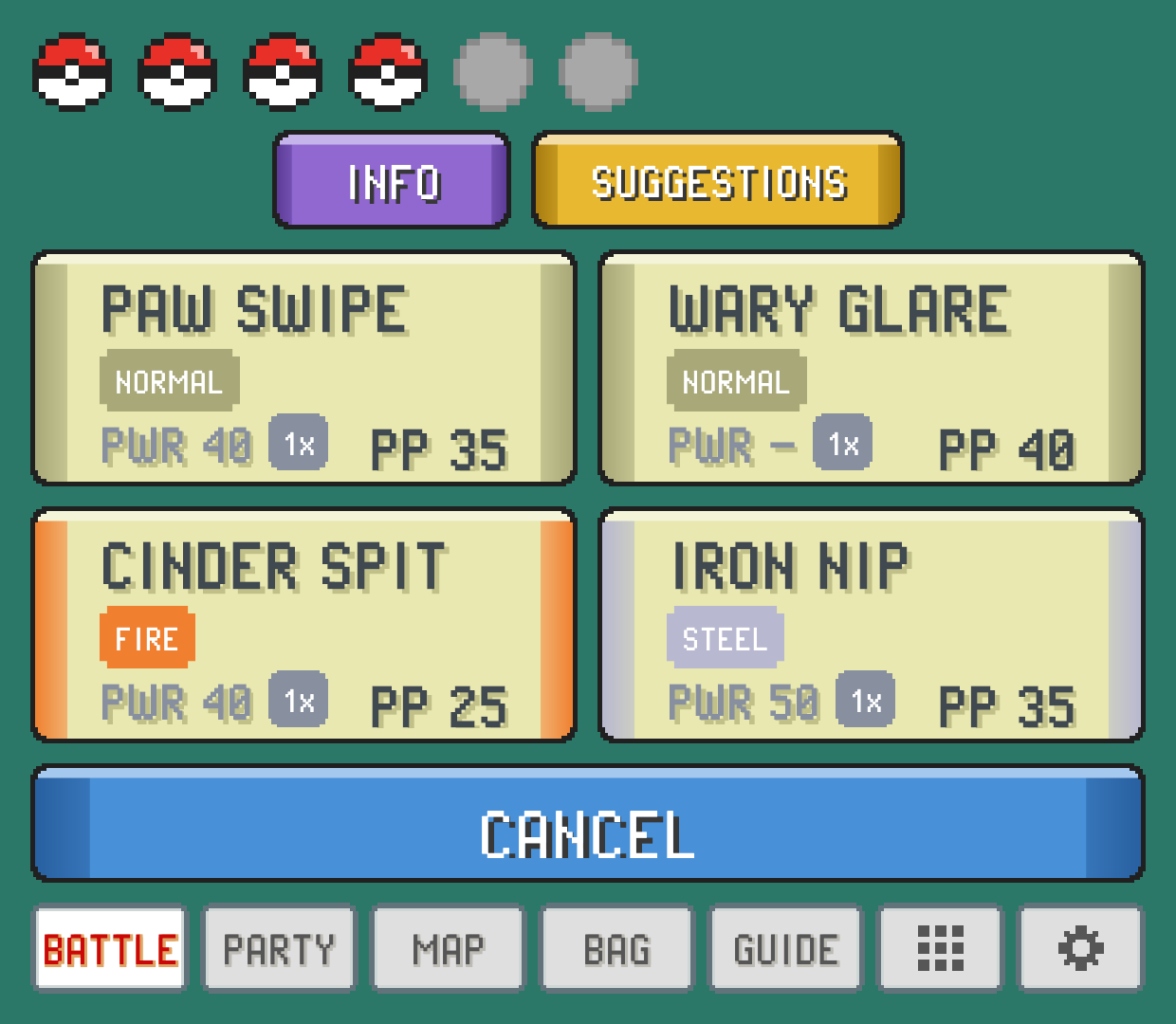
When you move the game's cursor with your buttons, the battle buttons show where it is with the DS games' own cursor: red corner marks that pulse in and out. In Game Boy games and games without one-press picks, they don't.
BATTLE INFO
Want to work the battle out yourself? Turn off BATTLE INFO in SETTINGS (COMPANION group). The BATTLE tab then has only your battle buttons: no INFO, no SUGGESTIONS and no ratings on your moves. In a double battle, or in the window over the game, it just reminds you to use the game's own menu.
BATTLE VIEW
The BATTLE tab opens on your battle buttons. If you'd rather read about the fight first and use the game's own menu, set BATTLE VIEW to INFO in SETTINGS (COMPANION group), or to SUGGESTIONS to see the best picks first. BACK on either still brings the buttons up.
ONE-TAP MOVES
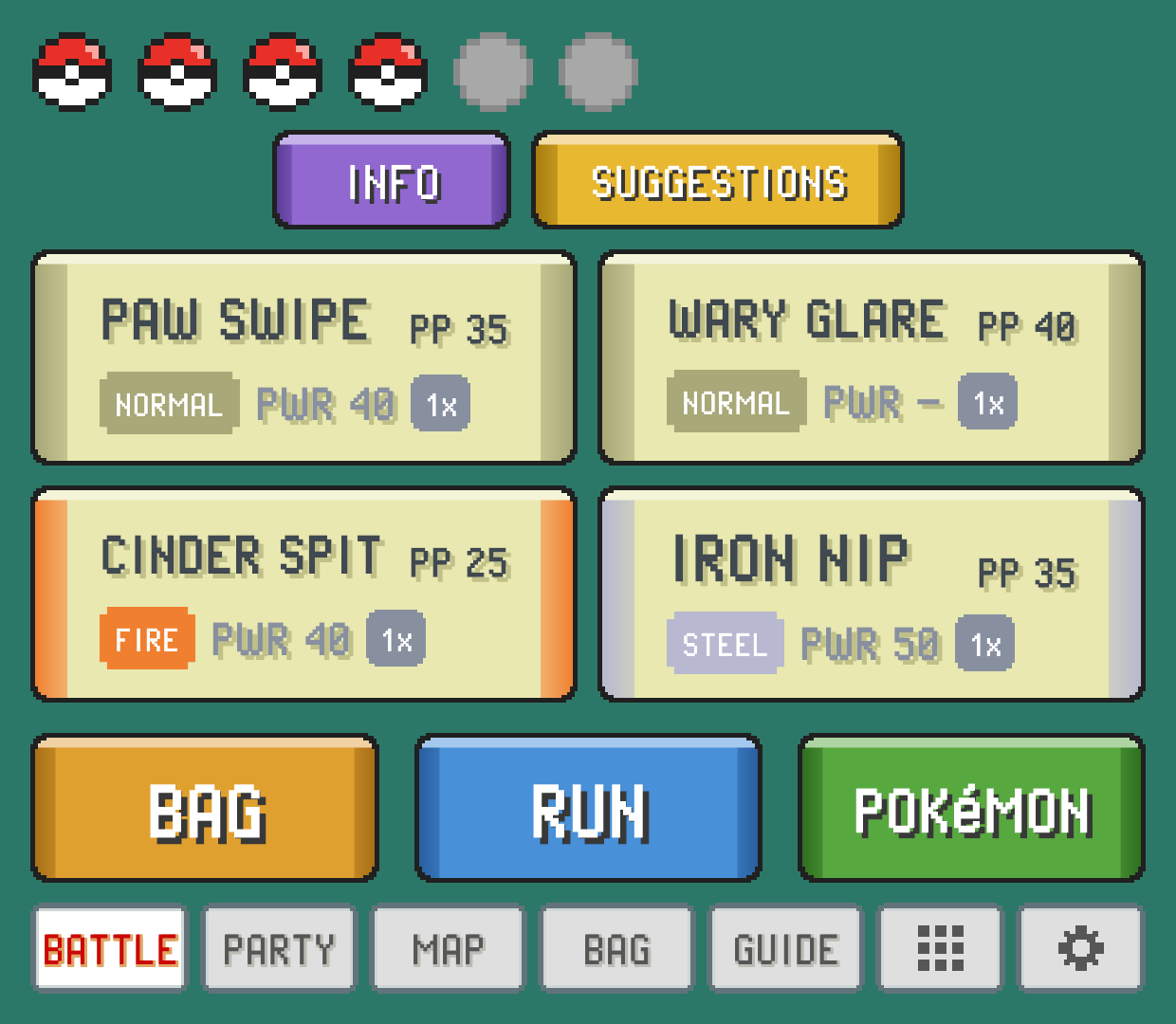
If you want to skip the FIGHT step, turn on ONE-TAP MOVES in SETTINGS (COMPANION group). Your four moves then sit right on your turn's screen, where FIGHT was, with BAG, RUN and POKéMON in a row underneath. One tap picks FIGHT and the move together.
LAST BALL
In a wild battle, a small white button with a ball on it sits at the corner of your turn's screen, by FIGHT (with ONE-TAP MOVES on, at the start of the row underneath). It shows the ball you threw last and how many you have left. Tap it and that ball is thrown at once, without opening the bag: the game plays its own throw, shakes and catch. If you're out of that kind, it shows the first ball in your bag instead.
It only shows when the game would let you throw: a wild battle with one Pokémon facing you, and room for a catch (a free spot in your party, or in a box). Turn it off with LAST BALL in SETTINGS (COMPANION group). It's there with the GEN 4 look of BATTLE STYLE, in FireRed, LeafGreen and Emerald and in the hacks on their code where the bag tab's USE works.
BATTLE STYLE
The battle screen comes in two looks, and both work the same way. GEN 4 is the one shown above: big coloured buttons. GEN 5 is laid out and coloured like the fifth generation's own touch screen, and fills the whole companion screen above the tab bar. It's a big ball, red on top and pale below, with a dark band across it that swells into the FIGHT! button in the middle. BAG, RUN and POKéMON are round dark plates rising from the bottom edge, BAG and POKéMON joined to the sides and RUN a little lower in between. Your party's balls sit under FIGHT!, and in a trainer battle the trainer's sit above it. INFO and SUGGESTIONS are the two small plates in the top corners.
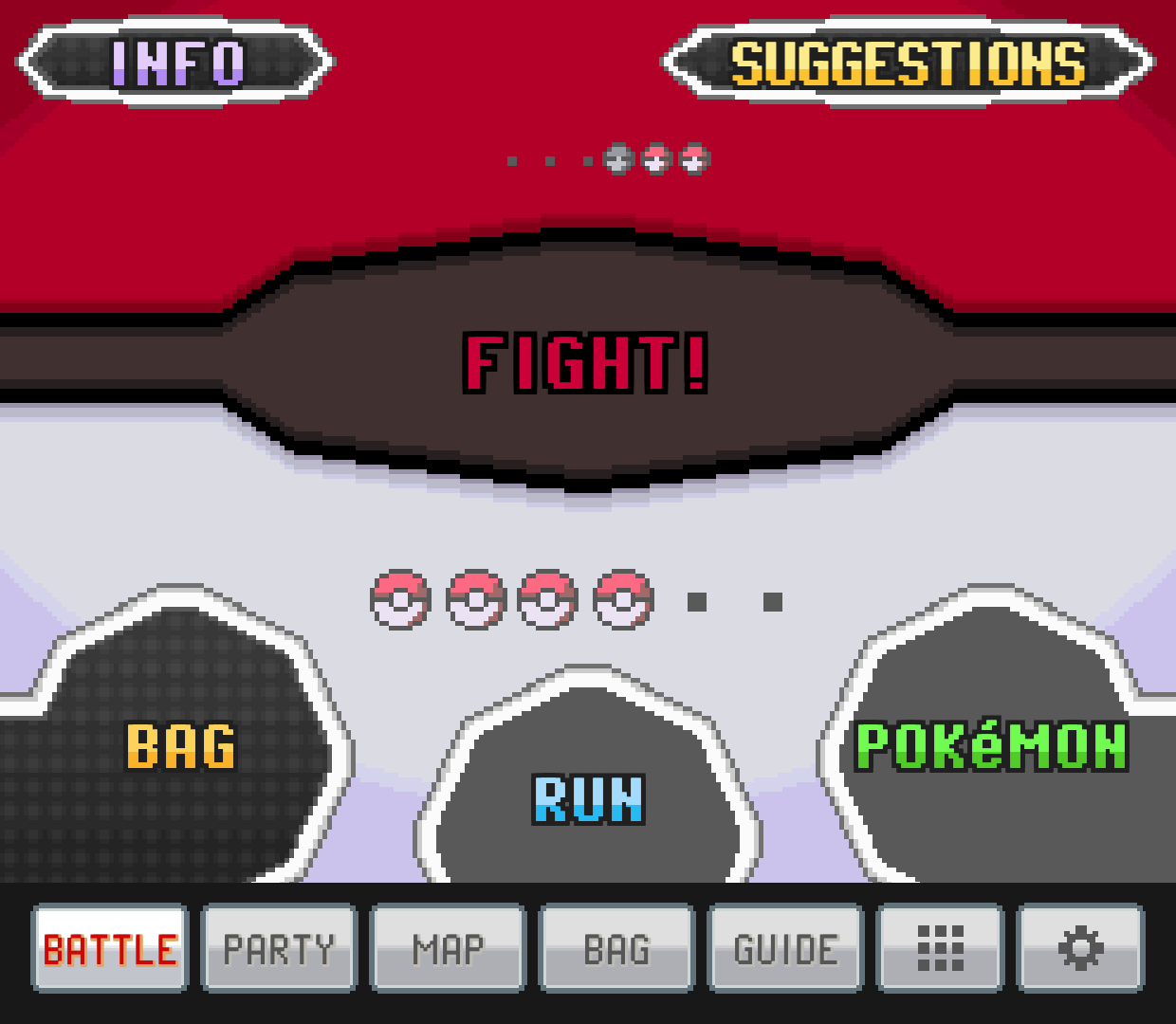
In GEN 5, FIGHT! grows the band into a dark field with your four moves on it, each plate edged in its move's type colour: the name, the type and PP, then the move's power and, with BATTLE HINTS on, how well it hits. The round plate with the arrow at the bottom right takes you back. POKéMON opens the game's style of party screen: a plate for each of your Pokémon with its HP bar, and the one to send in marked BEST when BATTLE HINTS is on. While the attacks play out, the tab shows a closed ball in the dark until your next turn. With a controller, the cursor is a set of rounded pink corners that pulse, as in the game.
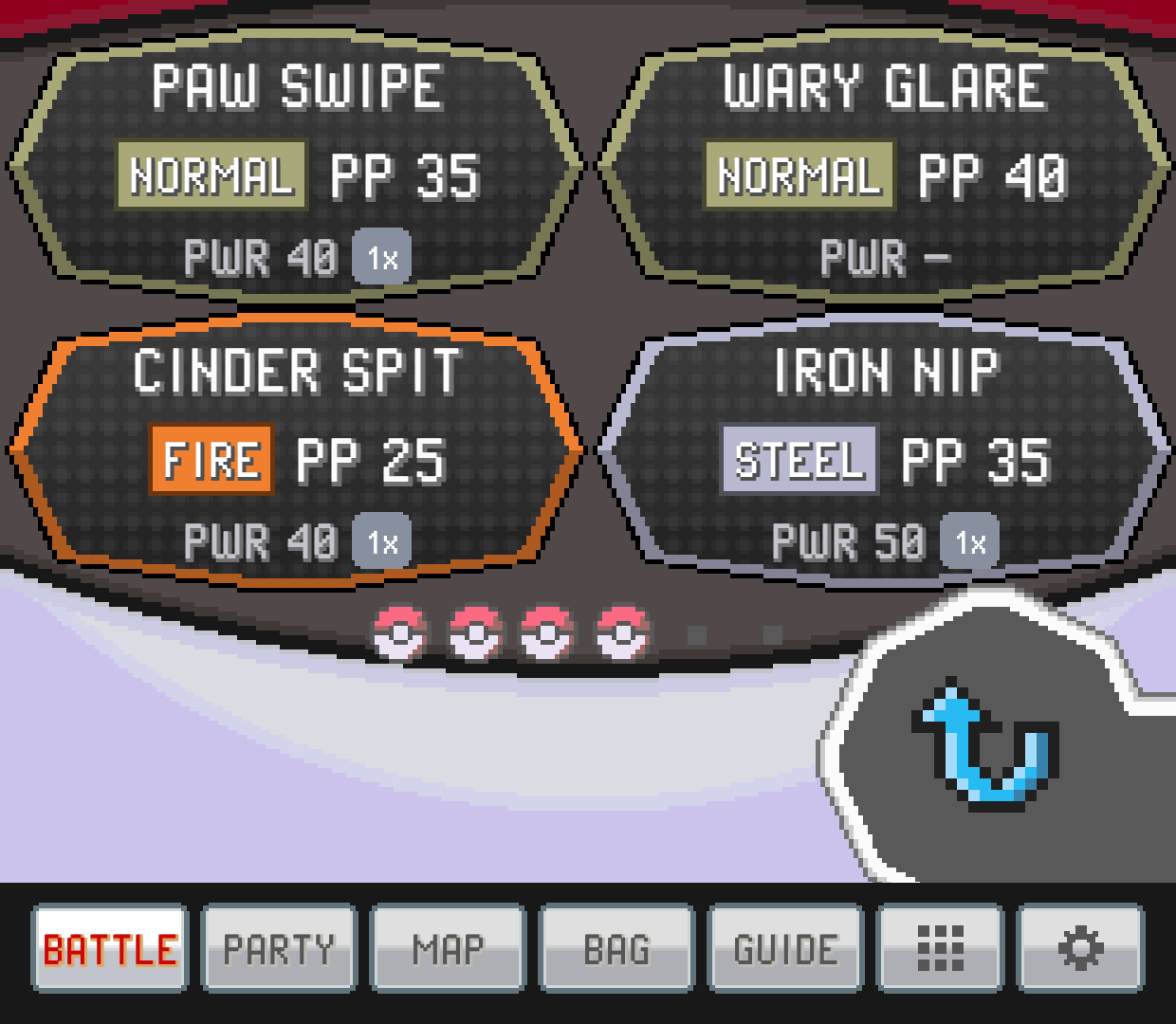
The first time you open PokeDaisy after this update, it asks which look you want, with both side by side. Change it any time with BATTLE STYLE in the companion's SETTINGS (COMPANION group). On a device with one screen it also sets the look of the BATTLE BUTTONS beside the game (see below). ONE-TAP MOVES works with either look. Yellow keeps its own black and white text boxes whichever you pick.
INFO: the whole matchup on one page
Tap INFO for the battle at a glance. It's split down the middle, you on the left and the foe on the right:
Top: a card for each Pokémon in battle with its icon, name, level, status, types and HP. Your card also warns you when the foe's type hits you hard (for example
ROCK 2x), or saysRESISTSwhen you shrug off its types.Bottom left: your moves, each with its verdict against the foe.
Bottom right: what the foe is
WEAK TO, what itRESISTSand what it'sIMMUNE TO, strongest weakness first.
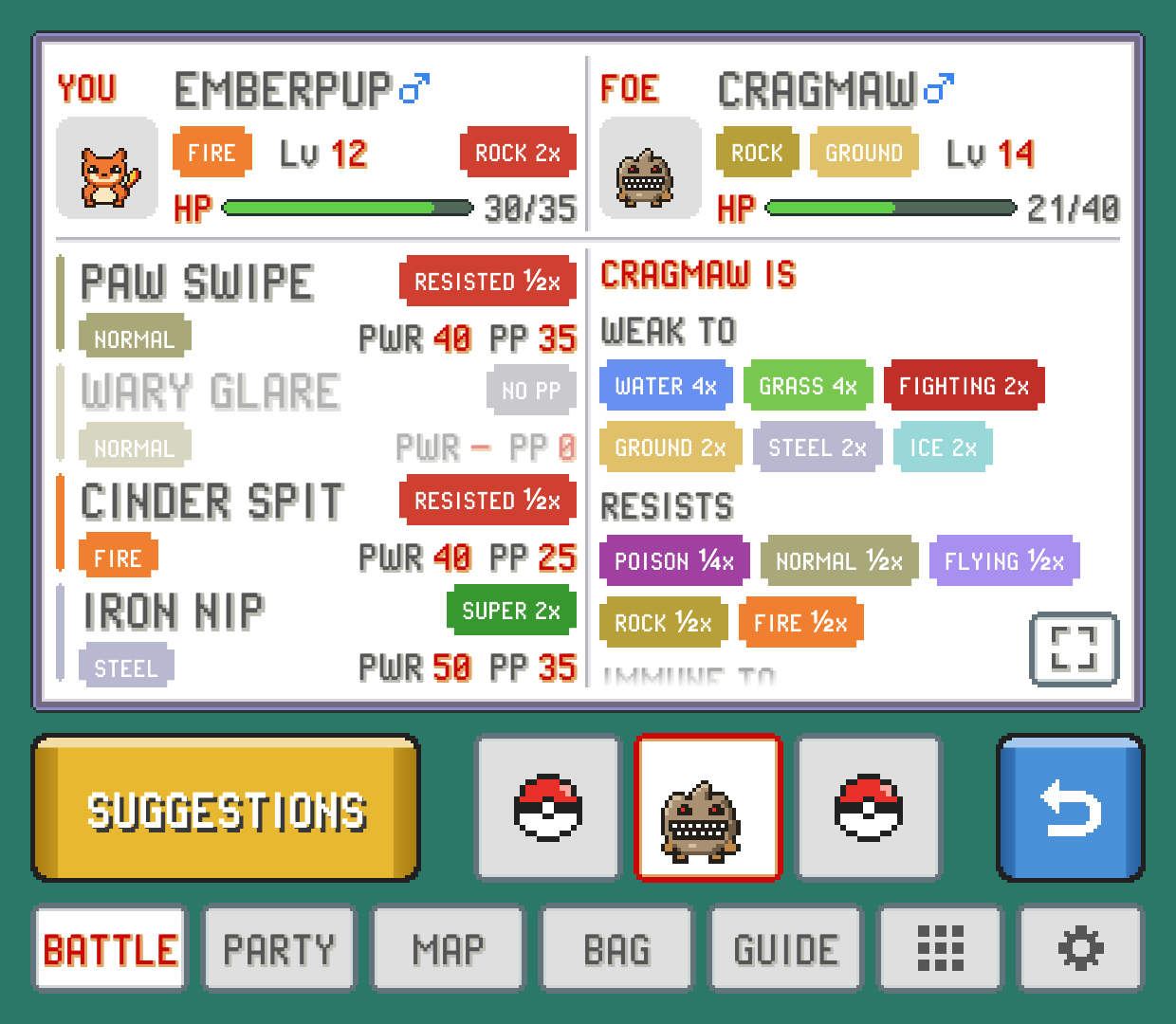
In a single battle all of that fits without scrolling. In a double battle the page scrolls.
Foe details
Scroll down the foe's column for more:
ABILITYandHELD ITEM.Its stats as they stand in this battle. Any stat that's been raised or lowered gets a small pill (+2 in green, -1 in red), and accuracy and evasion show up once they've changed.
Its moves, each with a verdict on what it does to your Pokémon. A
SUPERhere is a warning.
To give the foe the whole page, tap the button with the corner arrows at the bottom right. Your side shrinks to a strip with your Pokémon's sprite and an upright HP bar, and the foe's facts and moves get the room. Tap it again to go back. PokeDaisy remembers your choice for the next battle.
Shiny foes
When the wild Pokémon you're facing is shiny, the BATTLE tab says so with a gold SHINY plate at the top right, where a trainer's Poké Balls would be. On INFO its name gets a gold sparkle, and its icon shows in its shiny colours inside a gold frame. This works in the original FireRed, LeafGreen, Ruby, Sapphire and Emerald, in every language, and in the hacks SHINY ODDS lists, and goes well with it.
Battle focus
Turn on BATTLE FOCUS in SETTINGS and INFO becomes one page that fits the screen, with nothing to scroll. It shows one Pokémon at a time:
Its sprite, its name with its types under it, and beside them its
ABILITYand, under that, itsHELD ITEM. HP and level are left out.Its stats, with the same stage pills.
Its four moves, two by two, each with its verdict.
What it's
WEAK TO, what itRESISTSand what it'sIMMUNE TO.
The button at the bottom right turns the page from the foe to your Pokémon and back. The column down the right of the page follows it: on the foe's side it's the trainer's team (balls until you've seen them), on yours it's your whole team, every one showing. Tap one to look at it; the one you're looking at gets the frame. Back sits under the column, so the page gets the whole height. SUGGESTIONS and STATS aren't on this page; turn BATTLE FOCUS off to get them back.
In a trainer's double battle the page shows one foe at a time, the one on the left to start with. Both foes that are out show their icon in the column, and only the one you're looking at is framed. Tap the other to look at it, just as it is in the battle; a Pokémon that's out is never UNSEEN. Your side shows one of yours, the one on the left until you tap another.
Foe IVs
The foe's IVs, EVs and nature are hidden by default, since knowing them is a bit of a peek. Turn on FOE IVS in SETTINGS and INFO gets a STATS button: your Pokémon and the foe side by side, each stat with its IV and EV, plus NATURE and HIDDEN POWER. It's the same view as the STATS page in a summary.
The foe's team
In a trainer battle, the bar along the bottom of INFO and SUGGESTIONS shows the trainer's whole team in order. Pokémon you've already seen show their icon (faded once fainted). The ones the trainer hasn't sent out yet are balls.
Tap any slot to look at that Pokémon instead of the one in battle: INFO and SUGGESTIONS switch to it, with a red frame around its slot and a pill by its name:
NEXT: the one the trainer is about to send in. The pages switch to it by themselves when the trainer announces it.FAINTED: already beaten.RESERVE: seen earlier in this battle, now waiting.UNSEEN: not sent out yet. Tapping a ball shows you what's inside, so leave them alone if you like surprises.
Tap the framed slot again to go back to following the battle.
SUGGESTIONS: who and what to use
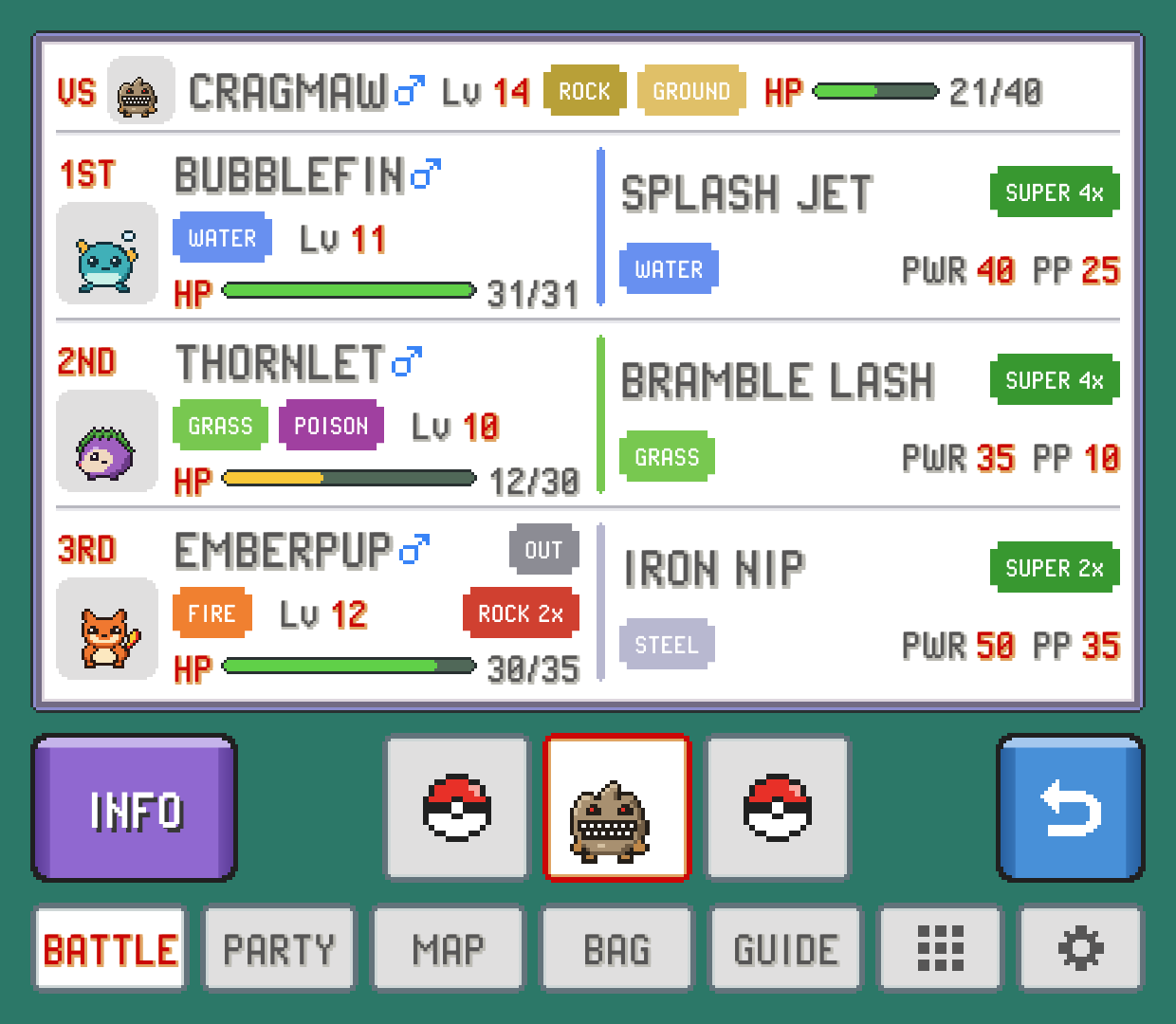
Tap SUGGESTIONS for a ranking of your whole party against the foe. At the top is a VS line with the foe's level, types and HP. Below are the three best picks, marked 1ST, 2ND and 3RD. Each shows the Pokémon's card (with OUT on the one already in battle) next to its best move and that move's verdict.
The ranking looks at how hard each Pokémon's best usable move hits this foe, and how badly the foe's types could hit back. Tap another of the trainer's Pokémon in the bottom bar and the list re-ranks against that one, which is handy for planning your next switch.
Switching during a battle
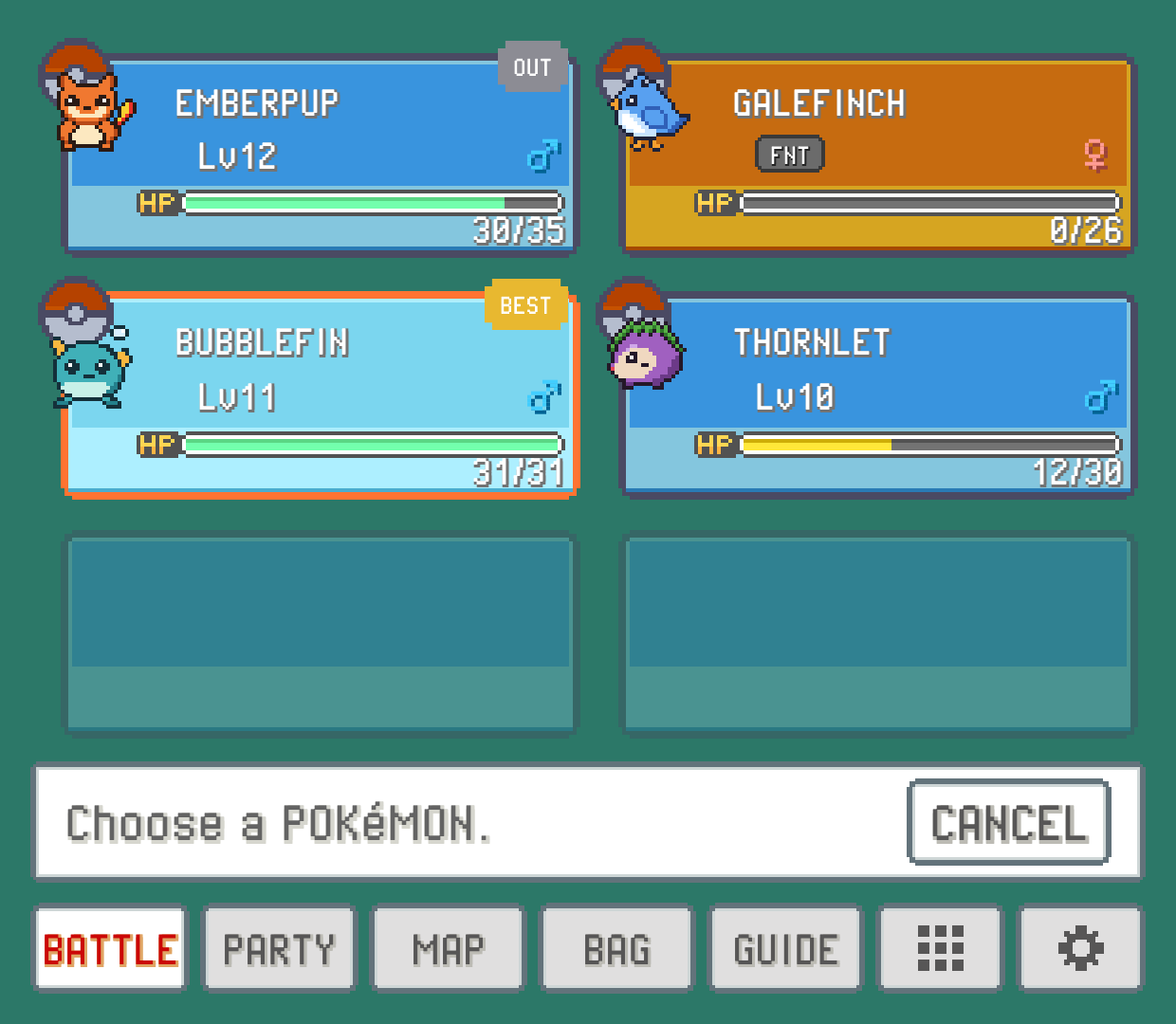
POKéMON opens your party with the game's own party slots, filling the tab, and "Choose a POKéMON." with a CANCEL button below. The cursor starts on SUGGESTIONS' top pick, tagged BEST; the Pokémon already in battle is tagged OUT.
Tap a Pokémon to send it in. PokeDaisy works the game's party menu for you, and the top screen holds still while it does, so you don't watch the menus flash by. A fainted Pokémon, an egg or the one already out can't be picked.
The same pane appears when the game asks you to choose, for example after one of your Pokémon faints.
This works in the Game Boy games too (Red, Blue, Yellow, Yellow Legacy, PureRed, PureBlue, Brown, Gold, Silver, Crystal, Crystal Legacy, Crystal Clear, Prism and Polished Crystal). There the game asks what to do with the Pokémon you picked, and PokeDaisy answers its switch option for you.
On two screens: HIDE BATTLE MENU
With the companion on a second screen, its battle buttons do the choosing, so the game's own menu is left off the game's screen: no FIGHT, BAG, POKéMON and RUN box, and no list of moves. The game's "What will ... do?" box runs the whole width instead, with a sign of two screens at its right, the bottom one lit, like a DS game pointing you at its touch screen. Pick on the companion as usual and the battle plays out on top.
Your game's buttons work on the companion's buttons too. The one the game's cursor is on is lit from the start of your turn, and the D-pad moves it the way the companion lays them out: up to FIGHT, down from FIGHT to RUN, left and right along BAG, RUN and POKéMON. A picks the lit one and B goes back, as in the game. In your moves the D-pad walks the four cards. While the menu is hidden, FIGHT and POKéMON on the companion open the game's own moves and party screen, so your buttons always work on what you see. The menu comes back by itself where the companion has no buttons for it: in a double battle and in the Safari Zone. Nothing in the game changes; only the picture does.
This is in FireRed and LeafGreen in English and Spanish, Emerald in every language but Japanese, and several hacks built on them. To see the game's menu again, turn off HIDE BATTLE MENU in SETTINGS (SCREEN group, on either screen). It's on by default, and only there on a device with two screens.
On one screen: BATTLE BUTTONS
On a device with one screen, held sideways, three buttons sit at the top right of the screen during a battle: FIGHT, POKéMON and RUN. They use the room beside the game (with ASPECT on EXPAND, the background past the battle's edges; on ORIGINAL, the black bar), and on a screen where that's narrow they reach a little into the battle's top-right corner, where there's only background.
FIGHT(with your Pokémon's icon on it) opens your moves as a list down the right side of the screen, one row each in the colours of the BATTLE tab's cards: the move's name andPPleft, its type and power, and withBATTLE HINTSon its verdict against the foe (likeSUPER 2x). Tap one to use it; a move out of PP can't be picked.POKéMONopens your party as a list down the right side, drawn like the game's own party list: each Pokémon's icon over its ball (animated like the game's), name, level or status, and HP bar.BESTmarks the one SUGGESTIONS would pick (it's highlighted, like the game's cursor) andOUTthe one battling. Tap one to send it in.RUNruns away. It's greyed out in a trainer battle, where you can't.
To close a list without picking, tap outside it or CANCEL under it. The buttons look like the BATTLE tab's and follow BATTLE STYLE: in GEN 5 they're dark plates in a white rim, each move edged in its type's colour and each of your Pokémon in a green rim with its HP on a pale strip. They dim while the battle plays out. They slide in from the right edge as a battle starts, and slide away while a list is open or the game's own party or bag screen is up. They show in single battles of the games with touch buttons, and only when there's room beside the game: not with ASPECT on STRETCH, nor while the companion is locked open beside the game. To hide them, turn off BATTLE BUTTONS in SETTINGS (SCREEN group, on either screen).
In HeartGold, SoulSilver, Platinum, Black, White, Black 2 and White 2 the battle stays wide, and its text box becomes a strip across the bottom of the screen: the game's question ("What will ... do?") at the far left, and the game's four buttons at the right, FIGHT and BAG over POKéMON and RUN. Each game keeps its own look: HeartGold's and SoulSilver's coloured buttons, Platinum's, Black's and White's dark buttons with coloured words, and Black 2's and White 2's black buttons outlined in colour, those last two's round battle panels laid out as the same four buttons. They work like the GBA games' menu: corners pulsing like the game's cursor mark your choice (red in HeartGold, SoulSilver and Platinum, pink in Black and White, white and red in Black 2 and White 2); move them with the D-pad and press A, or tap a button. FIGHT turns the strip into your four moves, drawn like the game's own move buttons: the name, the type and the PP, and in the corner how hard the move hits the foe (2x, 1x, ½x and so on). B, or the back button beside them, goes back. BAG and POKéMON open the game's own bag and party, floating over the battle once they've faded in, and when you're done there the buttons come back. With touch controls on, the ones that would sit over the strip's buttons or moves step aside while they're up, so a tap there always reaches the battle. This is while DS LAYOUT is on ONE SCREEN. With BATTLE BUTTONS off, or in a double, triple or rotation battle, the game's own battle buttons float in instead, and so does the choice of which Pokémon to hit. On PICTURE IN PICTURE the game's own buttons are already there in the corner, so you tap those.
Turning the hints off
If you'd rather work out matchups yourself, turn off BATTLE HINTS in SETTINGS. The verdicts on moves, the foe's weaknesses, the warnings on your card and the BEST tag all go away. The facts stay: HP, types, levels, moves, power and PP. (SUGGESTIONS is still there if you ask for it.)
Something wrong or missing here? Edit this page on GitHub or tell us.