Fast-forward and game speed
Speed through the slow parts, set a pace that sticks for each game, slow things down, and keep the music sounding right while you do.
Pokémon games have a lot of walking, text and grinding. Fast-forward runs the game several times faster so you get through it quicker, and PokeDaisy tries to get out of your way when speed would be a problem: in menus, on the map, and with the music.
You'll find all the speed settings under FF / SPEED at the top of the companion's SETTINGS. The ones you set once and leave, SCENE SPEEDS, FF MODE and FF MUSIC, are a tap further in, on its SPEED OPTIONS page. Most of them are on the top screen's Settings too.
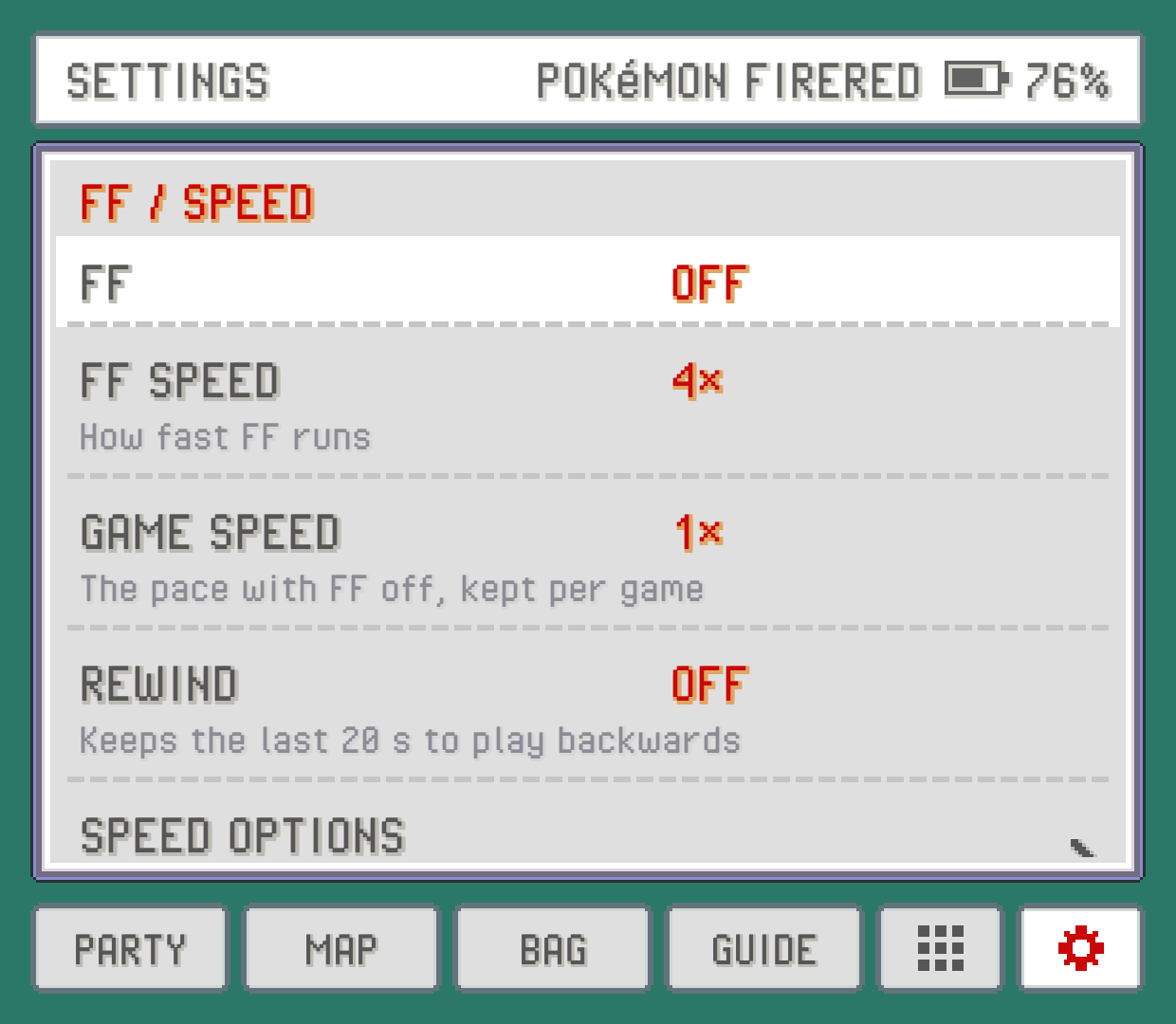
Turning fast-forward on
There are three ways, and you can mix them:
The
FFrow in the companion'sSETTINGS: tap it to switch fast-forwardONorOFF. It stays the way you left it, even after you close the app.FF TOGGLE, a hotkey that does the same thing. It's on the Tab key of a keyboard by default; you can put it on a controller button underHOTKEYS.FF HOLD, a hotkey that fast-forwards only while you hold it: R2 on a controller, or the space bar. Let go and you're back to normal speed.
A short message on the game screen tells you what speed you're at whenever it changes. See Controls, hotkeys and touch to change these buttons.
How fast: FF SPEED
FF SPEED sets how fast fast-forward goes: 1.5×, 2× (the default), 3×, 4×, 5×, 6×, 8× or 10×. INFINITE takes the cap off and runs as fast as your device can manage.
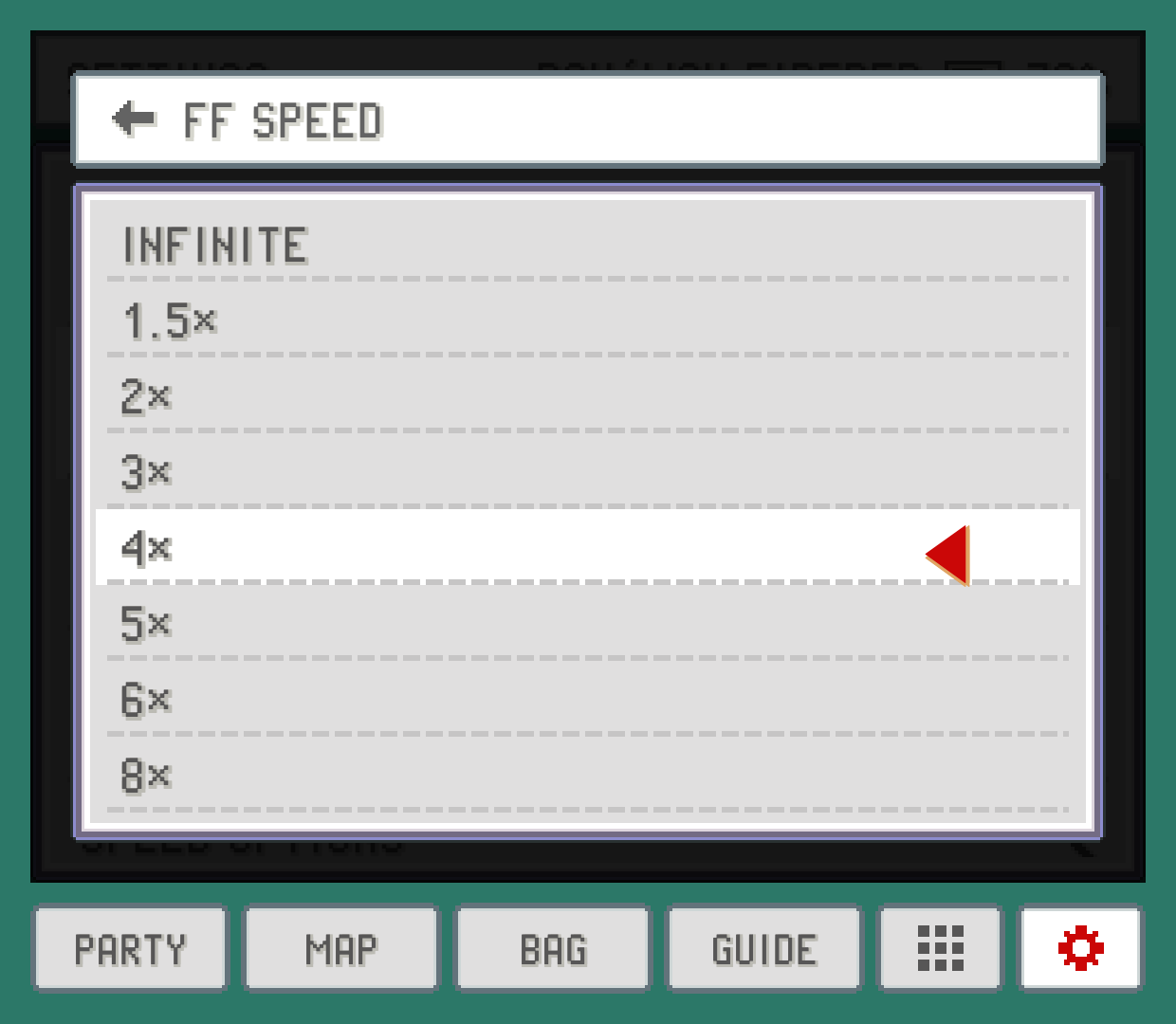
Higher isn't always better. At 8x or 10x, text flies past before you can read it, and some devices get warm. 2x to 4x is a good everyday range.
When your device can't keep up with the speed you picked (a DS game at 4x is a lot of work), fast-forward runs a step slower but evenly, rather than lurching between speeds, and goes back up by itself once it can.
Smart or normal: FF MODE
Fast-forward is great for walking around and terrible for scrolling through a menu, where the cursor flies past what you wanted. FF MODE picks how that's handled:
SMART(the default) drops to normal speed while a menu screen is open: your party, the bag, a Pokémon's summary, the PC, the Pokédex and the like. It does the same on the game's region map screens (including the one you pick a place to fly to) in FireRed, LeafGreen, Emerald and the hacks built on FireRed, so you can move the cursor. Close it and fast-forward picks up again by itself; you never have to turn it back on.NORMALkeeps fast-forward on everywhere.
A few things stay fast in SMART on purpose:
Battles. Attacks, messages and the screens between turns stay fast. While the battle waits for you (picking an action, a move or a target, or in its bag and party screens), it drops to normal speed, so the Pokémon and their boxes move at the game's own pace while you decide.
Shops. The shop's buy and sell screens stay fast, since the clerk's lines are part of them and would crawl at normal speed.
The START menu and talking to people stay fast too; they aren't menu screens.
A pace that sticks: GAME SPEED
GAME SPEED (companion SETTINGS only) changes the game's normal speed rather than turning on fast-forward. Pick 0.25×, 0.5×, 1×, 1.5×, 2×, 3× or 4×.
It's saved for each game separately. Set a hack you're replaying to 1.5× and it opens at 1.5x every time, while your other games stay at 1x. Below 1x the sound is muted. If fast-forward is on, it wins over GAME SPEED; turn fast-forward off and you're back at your game speed.
The SPEED CYCLE hotkey (L2 on a controller, or the = key) steps through 1×, 1.5×, 2×, 3× and 4× and round again, without opening SETTINGS. If you're on one of the slow speeds, it goes back to 1×. Where it stops is saved for that game too.
Battles, text and menus at their own speed: SCENE SPEEDS
SCENE SPEEDS (companion SETTINGS only, on the SPEED OPTIONS page) gives parts of the game a speed of their own. You can keep walking around at normal speed and still have battles go by at 2x, for example:
BATTLE SPEEDcovers the whole battle, from the first message to the last. Its bag and party screens followMENU SPEEDinstead.TEXT SPEEDapplies whenever a text box is open on the field: someone talking, a sign, a message after you pick something up. The words come out that much faster, close to instant text. The START menu counts too.MENU SPEEDcovers menu screens: your party, the bag, the summary, the PC, the map and so on.BIKE SPEEDapplies while you ride a bike on the field, andSURF SPEEDwhile you surf (or dive). The whole game runs at that speed meanwhile, so the people and creatures around you speed up too.
Each one is SAME (the default: it follows GAME SPEED, like walking around does) or 1× up to 4×. These apply while fast-forward is off; turn fast-forward on and it wins everywhere. A sped-up scene's music follows FF MUSIC, the same as fast-forward's.
TEXT SPEED shows N/A on a game PokeDaisy can't read text boxes in yet. BIKE SPEED and SURF SPEED show N/A until you've walked around for a moment in a game, and stay that way on hacks where PokeDaisy can't tell yet whether you're riding or surfing: Heart and Soul, SoulGold, Too Many Types 2, Emerald Rogue and Quetzal.
Instant text
Turn on INSTANT TEXT in the companion's SETTINGS, GAMEPLAY group, and the words in a text box appear at once, in conversations and in battles alike. Nothing else changes: the music and the rest of the game stay at their normal speed, and a box still waits for your press where the game would. That makes it different from TEXT SPEED, which runs the whole game faster while a box is up.
It changes the game while it runs, never your ROM file or your save, and you can switch it off at any time.
Slow motion
Hold the SLOWMO HOLD hotkey and the game runs at half speed until you let go, with the sound muted. It's handy for a tricky moment, like timing a button press or watching an animation you'd otherwise miss. On a keyboard it's the minus key; it has no controller button by default, so give it one under HOTKEYS if you want it.
For a slow pace that lasts, use GAME SPEED at 0.5× or 0.25× instead.
Music while fast-forwarding: FF MUSIC
Sped-up game music turns into chipmunk noise. FF MUSIC picks what you hear while fast-forwarding:
STEADY(the default) keeps the song playing at its normal speed and pitch while the game races. The song loops where the game loops it, and it carries on through menus whenSMARTslows the game down, instead of starting over.SPED-UPplays the game's own sound at the game's speed.OFFis silence while fast-forwarding.
STEADY works by preparing a clean recording of each song from your ROM, in the background. The first time you play a game, it goes through the game's songs once; a song that isn't ready yet is silent during fast-forward. Once a song is done, it's kept, so this only happens the first time you hear it.
The recordings take at most 1.5 GB of your device's storage for all your games together, and less when the device is short on space. When they reach that, the songs you haven't heard for the longest time make room. A song that was removed is recorded again the next time the game plays it, so it can be silent once more for a moment.
Game volume and mute: SOUND
The SOUND group, right under FF / SPEED in the companion's SETTINGS (and in the top screen's Settings), sets how loud the game is, so you can keep it down while listening to something else.
GAME VOLUMEis a slider from100%(the default) down to0%: drag it, tap along it, or press left and right on the D-pad while the row is picked.100%is the game as loud as your device's own volume plays it; anything lower is quieter than that, and the device's volume buttons still work on top. It covers everything the game sounds like: its music and sounds,FF MUSIC's songs and the click of the companion's buttons.MUTE GAMEturns the game's sound off completely. YourGAME VOLUMEis kept, so turning it back on brings the same level back.AUDIO EFFECTSlets equalizer apps like JamesDSP change the game's sound. It's off by default because the game's sound normally takes a faster way out that skips them. Turned on, the sound can lag a little behind the picture, so leave it off unless you use one of these apps. It starts working the next time you start a game.
To mute and unmute without opening SETTINGS, give the MUTE hotkey a button under HOTKEYS (see Controls). A short message on the game says which way it went.
The real-time clock
Ruby, Sapphire, Emerald and the Pokémon hacks that use a clock get it from your device. Day and night, berries growing, tides and daily events follow the device's date and time, with nothing to set up. Save files and save states keep the clock, so it carries on correctly.
The clock follows real time, not game speed: fast-forward doesn't make berries grow faster.
A save copied off a real cartridge can carry that cartridge's clock with it, and an old cartridge's clock battery is often dead. PokeDaisy starts such a clock fresh from your device, so the game doesn't greet you with "The internal battery has run dry" and its clock events keep working.
Rewind
Missed a jump or walked into the wrong trainer? With REWIND on, holding the REWIND HOLD hotkey plays the last 20 seconds or so backwards. It's off by default and never touches your save file. It works in Game Boy, Game Boy Color and Game Boy Advance games, not DS games. See Saves for how it works.
Something wrong or missing here? Edit this page on GitHub or tell us.